For an overview of what IAM Federation does and the audit trail it produces, see the IAM Federation for GCP overview.
You configure federation on a connection in the Hoop web UI: pick IAM Federation as the connection method, paste the admin service account, and map identities. The flow has three parts:
  1. Complete the GCP IAM setup on this page (gcloud): mint the admin service account, grant it Token Creator on the user principals, and verify impersonation from a shell.
  2. In the Hoop UI, create or edit the connection and choose IAM Federation as the connection method. Paste the admin SA JSON, set the GCP project, and define the identity mapping.
  3. Click Test as user to dry-run the mapping for a specific Hoop user. No session is opened and no audit record is written.
The numbered Step 1–3 sections cover the GCP side (item 1). The Configure federation on the connection and Test as user sections cover the Hoop UI (items 2–3).

Prerequisites

# Use your real project id.
export PROJECT_ID="my-proj"

# Pick a name for the admin service account Hoop will hold the key to.
export ADMIN_SA="hoop-admin"
export ADMIN_EMAIL="${ADMIN_SA}@${PROJECT_ID}.iam.gserviceaccount.com"

gcloud config set project "$PROJECT_ID"
Enable the API Hoop calls into:
gcloud services enable iamcredentials.googleapis.com
Without this, every federated session fails at the GenerateAccessToken call with PERMISSION_DENIED: IAM Service Account Credentials API has not been used.

Step 1: Create the admin service account

The admin SA is the only identity Hoop’s gateway authenticates with. It never reads user data; it only mints tokens for the user principals.
gcloud iam service-accounts create "$ADMIN_SA" \
  --display-name="Hoop Federation Admin"

# Export the JSON key — this is what you'll paste into Hoop.
gcloud iam service-accounts keys create ./hoop-admin-sa.json \
  --iam-account="$ADMIN_EMAIL"
You’ll paste the contents of hoop-admin-sa.json into the connection’s IAM Federation form later (the Admin role credentials → Service account JSON field). Hoop encrypts it at rest, and the gateway becomes the only place it lives, so delete the local file once the connection is saved.

Step 2: Grant Token Creator (pick one pattern)

Federation involves two kinds of service account. Mixing up which one needs which role is the most common setup mistake, so settle the mental model before running any command:
Service accountRole it needsQueries BigQuery?Who holds its key
Admin SA (e.g. hoop-admin)roles/iam.serviceAccountTokenCreator on each user SANoHoop’s gateway
User SA (e.g. alice)roles/bigquery.user + roles/bigquery.dataViewer (or finer)YesNobody; only ever impersonated
The admin SA never gets a BigQuery role. Its only job is to mint a token. Once that token exists it acts as the user SA, so BigQuery checks the user SA’s permissions, not the admin’s. Granting BigQuery roles to the admin SA does nothing for the query path. You have two patterns for the impersonation grant, depending on how granular you want your GCP audit trail. Create one GCP service account per Hoop user, then let the admin SA impersonate only those accounts. This gives the cleanest audit trail and the smallest blast radius if the admin key ever leaks.
# Repeat per user — example: alice
USER_SA_NAME="alice"
USER_EMAIL="${USER_SA_NAME}@${PROJECT_ID}.iam.gserviceaccount.com"

# Create the per-user service account
gcloud iam service-accounts create "$USER_SA_NAME" \
  --display-name="Hoop user: alice"

# Let the admin SA impersonate this user-SA
gcloud iam service-accounts add-iam-policy-binding "$USER_EMAIL" \
  --member="serviceAccount:${ADMIN_EMAIL}" \
  --role="roles/iam.serviceAccountTokenCreator"

# Grant the user-SA the data access it actually needs (BigQuery in this example)
gcloud projects add-iam-policy-binding "$PROJECT_ID" \
  --member="serviceAccount:${USER_EMAIL}" \
  --role="roles/bigquery.user"

gcloud projects add-iam-policy-binding "$PROJECT_ID" \
  --member="serviceAccount:${USER_EMAIL}" \
  --role="roles/bigquery.dataViewer"
Pair this with a federation policy that maps each Hoop user to their SA via a template:
# federation.yaml
builtin_provider: gcp_iam
identity_target_template: "{user.email}@my-proj.iam.gserviceaccount.com"
fallback_policy: deny
token_ttl_seconds: 3600
extra_config:
  project_id: my-proj
The {user.email} placeholder expands to the local part of the Hoop user’s email, everything before the last @ (e.g. alice@example.com becomes alice). The SA names you created in gcloud must match this expansion. To namespace Hoop-managed SAs with a prefix (e.g. hoop-alice), include the prefix in both your gcloud iam service-accounts create command and the template: "hoop-{user.email}@...".
GCP service-account names must be 6–30 lowercase letters, digits, and hyphens; they must start with a letter and end with a letter or digit. {user.email} renders the email local part as-is, so two cases fail Hoop’s preflight with a clear error before any GCP call:
  • Illegal characters. Dots or plus signs in the local part (first.last@example.com becomes first.last) can’t appear in an SA name.
  • Too short. A local part under 6 characters (al@acme.com becomes al) is below GCP’s minimum.
Fix either by adding a literal prefix to pad or namespace the name (e.g. "hoop-{user.email}@..."), mapping users to a longer handle, or using Pattern B with a literal shared SA.

Pattern B: Project-wide grant (simpler)

Grant the admin SA serviceAccountTokenCreator at the project level once. It can then impersonate any SA in the project. This is faster to set up, but a compromised admin key reaches every SA in the project.
gcloud projects add-iam-policy-binding "$PROJECT_ID" \
  --member="serviceAccount:${ADMIN_EMAIL}" \
  --role="roles/iam.serviceAccountTokenCreator"
You still create the target service accounts and grant them their data-plane roles. Only the impersonation grant is collapsed.

Step 3: Verify the grant before saving in Hoop

Before pasting the admin key into Hoop, prove the impersonation works from a regular shell. Hoop makes this same call on every session open, so a green light here means a green light in Hoop.
# Auth as the admin SA
gcloud auth activate-service-account --key-file=./hoop-admin-sa.json

# Try to mint a token AS one of your target user-SAs
gcloud auth print-access-token \
  --impersonate-service-account="alice@${PROJECT_ID}.iam.gserviceaccount.com" \
  --scopes=https://www.googleapis.com/auth/cloud-platform
gcloud auth activate-service-account changes your active gcloud identity to the admin SA, and it stays that way for every later command. The admin SA can mint tokens but can’t administer IAM, so re-running any add-iam-policy-binding from Step 2 now fails with PERMISSION_DENIED: ...getIamPolicy denied. Switch back to your human account first:
gcloud auth list                          # the * marks the active account
gcloud config set account you@example.com # back to your human login
Match the output against these cases:
OutputMeaningFix
A long ya29.… tokenAll grants correct. Ready to feed hoop-admin-sa.json to Hoop.None
403: The caller does not have permissionAdmin SA is missing roles/iam.serviceAccountTokenCreator on the target.Re-run step 2.
404: Service account … does not existTypo in the target email or the user-SA was never created.Re-check gcloud iam service-accounts list.
400: Invalid form of account IDThe identity template would produce an illegal SA name (dots, plus signs, too short).Adjust the template (see the warning under Pattern A).

Configure federation on the connection

With the GCP side verified, configure federation on the connection in the Hoop web UI. Create a new connection (or edit an existing one) and, under Role connection method, choose IAM Federation (the alternative to Manual Input and Secrets Manager).
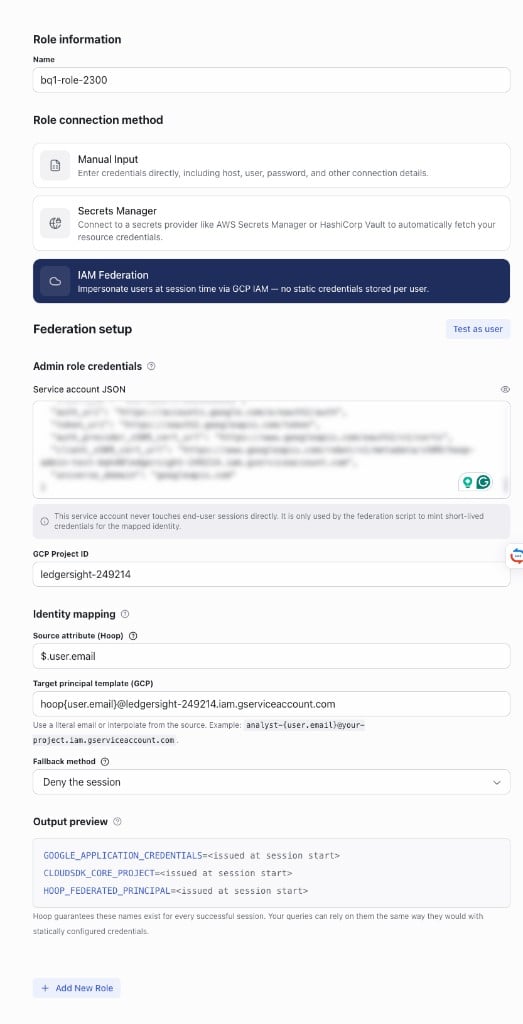
Connection form with IAM Federation selected, showing Admin role credentials, GCP Project ID, Identity mapping, and Output preview sections
Pick an agent for the connection before testing. The Test as user button stays disabled until an agent is selected, because the dry-run probe runs through that agent.
The Federation setup form has three parts: Admin role credentials
  • Service account JSON: paste the full contents of hoop-admin-sa.json from Step 1. This is the admin SA that mints tokens; it never touches end-user sessions. On an existing connection the field is masked, so click Replace credentials to rotate it.
  • GCP Project ID: your project, e.g. my-proj.
Identity mapping
  • Source attribute (Hoop): the JSONPath into the Hoop session context, default $.user.email.
  • Target principal template (GCP): how the Hoop identity becomes a GCP principal, e.g. hoop-{user.email}@my-proj.iam.gserviceaccount.com. The {user.email} placeholder follows the same expansion and naming rules as Pattern A above. It renders the email local part, which must form a legal SA name (6–30 chars; add a literal prefix like hoop- if your local parts are too short).
  • Fallback method: Deny the session (block access when the identity can’t be mapped) or Use the connection’s static credentials (fall back to the credentials stored on the connection). These correspond to fallback_policy: deny / static.
Output preview lists the environment variables every successful session receives (HOOP_FEDERATED_PRINCIPAL, CLOUDSDK_CORE_PROJECT, and the federated credentials). Your queries use them the same way they would with statically configured credentials. Save the connection to persist the policy and store the admin SA encrypted at rest.

Test as user

Click Test as user (top-right of Federation setup) to dry-run the mapping. The button enables once the admin credentials, GCP project ID, source attribute, target template, and an agent are all set.
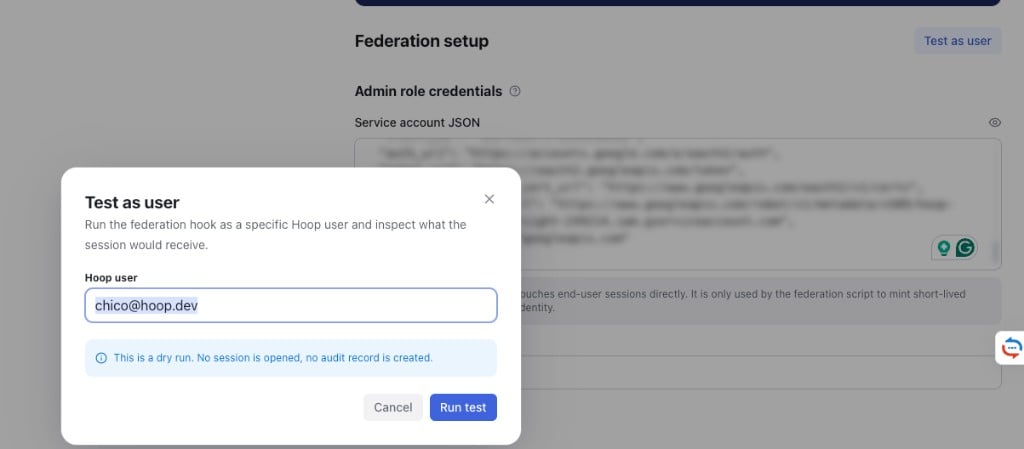
Test as user dialog with a Hoop user email field and a note that it is a dry run with no session opened and no audit record created
In the dialog, enter a Hoop user email (it defaults to your own) and click Run test. This is a dry run: no session opens and no audit record is created. Hoop resolves the principal, mints a token via the admin SA, and runs a SELECT 1 probe through the connection’s agent, so it catches agent-side problems too. A successful test reports “Session would start as <email> along with:
FieldMeaning
Resolved principalThe GCP SA the user maps to, e.g. alice@my-proj.iam.gserviceaccount.com
Impersonated viaThe admin SA that minted the token, e.g. hoop-admin@my-proj.iam.gserviceaccount.com
Token TTLLifetime of the minted token, in minutes
Env vars emittedThe credential env vars injected into the session
A failure shows Test failed with the probe status and the underlying GCP error. The most common is the 403 ... getAccessToken denied you’d see when the Token Creator grant from Step 2 is missing or hasn’t propagated. See Common pitfalls below.
On a successful session, Hoop supersedes any static GOOGLE_APPLICATION_CREDENTIALS set on the connection. It ignores the legacy SA key file in favor of the federated token and strips it server-side on every federated session. You don’t need to remove it from the connection manually.

Enabling and querying GCP audit logs

After federation is wired up, every BigQuery query produced through Hoop generates two correlated log entries:
# 1. The impersonation event (in Cloud Logging, IAM service)
protoPayload.serviceName: iamcredentials.googleapis.com
protoPayload.methodName: GenerateAccessToken
protoPayload.authenticationInfo.principalEmail: hoop-admin@my-proj.iam.gserviceaccount.com
protoPayload.request.name: projects/-/serviceAccounts/alice@my-proj.iam.gserviceaccount.com

# 2. The actual BigQuery job (in Cloud Logging, BigQuery service)
protoPayload.serviceName: bigquery.googleapis.com
protoPayload.methodName: jobservice.insert
protoPayload.authenticationInfo.principalEmail: alice@my-proj.iam.gserviceaccount.com
protoPayload.authenticationInfo.serviceAccountDelegationInfo:
  - firstPartyPrincipal:
      principalEmail: hoop-admin@my-proj.iam.gserviceaccount.com
The two log streams live in different audit log tiers, which changes how you enable and find them:
Log typeServiceEventDefault?
Admin Activityiamcredentials.googleapis.comGenerateAccessToken, proves impersonation happenedOn by default, free
Data Accessbigquery.googleapis.comjobservice.insert, jobservice.jobcompleted; proves the query ran as AliceOff by default, billed per GiB

Enable Data Access logs first

BigQuery Data Access logs are disabled by default. If you set up federation and see GenerateAccessToken events (Hoop minted the token) but not the query itself, this is why. Enable them once at the project level:
# Pull the current IAM policy, add the auditConfigs block, push it back.
gcloud projects get-iam-policy "$PROJECT_ID" --format=json > /tmp/policy.json

# Edit /tmp/policy.json — add this entry to the top-level "auditConfigs"
# array (create the array if it doesn't exist):
#   {
#     "service": "bigquery.googleapis.com",
#     "auditLogConfigs": [
#       { "logType": "ADMIN_READ" },
#       { "logType": "DATA_READ" },
#       { "logType": "DATA_WRITE" }
#     ]
#   }

gcloud projects set-iam-policy "$PROJECT_ID" /tmp/policy.json
After this, every BigQuery job (including Hoop-sourced ones) generates a protoPayload.serviceName: bigquery.googleapis.com entry. Data Access logs bill at standard Cloud Logging rates. That stays small for query metadata, but scope it by sink filter if your project runs millions of jobs per day.

Quick verification with gcloud logging read

Right after a hoop connect my-bq + bq query session as Alice, fetch the two correlated entries:
# 1. Hoop's impersonation events from the last hour
gcloud logging read '
  protoPayload.serviceName="iamcredentials.googleapis.com"
  AND protoPayload.methodName="GenerateAccessToken"
  AND protoPayload.authenticationInfo.principalEmail="hoop-admin@my-proj.iam.gserviceaccount.com"
  AND timestamp >= "'"$(date -u -v-1H +%Y-%m-%dT%H:%M:%SZ)"'"
' --limit=20 --format=json --project="$PROJECT_ID"

# 2. Alice's BigQuery activity from the last hour
gcloud logging read '
  protoPayload.serviceName="bigquery.googleapis.com"
  AND protoPayload.authenticationInfo.principalEmail="alice@my-proj.iam.gserviceaccount.com"
  AND timestamp >= "'"$(date -u -v-1H +%Y-%m-%dT%H:%M:%SZ)"'"
' --limit=20 --format=json --project="$PROJECT_ID"
The -v-1H argument is the BSD date syntax used on macOS. On Linux use --date '1 hour ago' instead: timestamp >= "$(date -u --date='1 hour ago' +%Y-%m-%dT%H:%M:%SZ)".

Browse in Cloud Logging Explorer

Console → LoggingLogs Explorer. The canonical filter for “every event that went through Hoop federation, regardless of user” pivots on the delegation chain:
protoPayload.serviceName="bigquery.googleapis.com"
protoPayload.authenticationInfo.serviceAccountDelegationInfo.firstPartyPrincipal.principalEmail="hoop-admin@my-proj.iam.gserviceaccount.com"
Save it as a custom view. It’s the query you’ll come back to whenever you need to prove “every BigQuery query in this project went through Hoop” for a compliance audit. Queries where principalEmail is the admin SA itself (with no delegation chain) are the ones that bypassed federation. Alert on those to enforce “all access goes through Hoop”.

Long-term audit: sink to BigQuery

For history and analytics, route the audit logs into a BigQuery dataset and query them with SQL. This is the production pattern for compliance reporting.
# 1. Create the destination dataset
bq --project_id="$PROJECT_ID" mk --dataset \
  --description="Hoop federation audit sink" \
  audit_logs

# 2. Create the sink with a filter scoped to Hoop's admin SA
gcloud logging sinks create hoop-federation-audit \
  bigquery.googleapis.com/projects/"$PROJECT_ID"/datasets/audit_logs \
  --log-filter='
    (protoPayload.serviceName="bigquery.googleapis.com"
     OR protoPayload.serviceName="iamcredentials.googleapis.com")
    AND protoPayload.authenticationInfo.serviceAccountDelegationInfo.firstPartyPrincipal.principalEmail="hoop-admin@my-proj.iam.gserviceaccount.com"
  ' \
  --project="$PROJECT_ID"

# 3. Grant the sink's auto-generated writer SA permission to write to the dataset
SINK_WRITER=$(gcloud logging sinks describe hoop-federation-audit \
  --project="$PROJECT_ID" --format='value(writerIdentity)')
bq add-iam-policy-binding --member="$SINK_WRITER" \
  --role="roles/bigquery.dataEditor" "$PROJECT_ID:audit_logs"
After ~15 minutes the sink starts populating daily-partitioned tables. Query Alice’s last 24h of Hoop-sourced queries with regular SQL:
SELECT
  timestamp,
  protoPayload.authenticationInfo.principalEmail AS resolved_principal,
  protoPayload.serviceData.jobQueryResponse.job.jobConfiguration.query.query AS query_text
FROM `my-proj.audit_logs.cloudaudit_googleapis_com_data_access_*`
WHERE protoPayload.serviceName = 'bigquery.googleapis.com'
  AND protoPayload.authenticationInfo.principalEmail = 'alice@my-proj.iam.gserviceaccount.com'
  AND timestamp > TIMESTAMP_SUB(CURRENT_TIMESTAMP(), INTERVAL 24 HOUR)
ORDER BY timestamp DESC;
The _* wildcard covers Cloud Logging’s daily-partitioned sink tables (cloudaudit_googleapis_com_data_access_20260528, ..._20260529, etc.).

Common pitfalls

BigQuery Data Access logs are off by default. The GenerateAccessToken event lives in the always-on Admin Activity tier, but the query itself (jobservice.insert) lives in Data Access, which you have to opt into. Enable it project-wide with the auditConfigs snippet under Enable Data Access logs first, then re-run a query. New entries appear in Cloud Logging within seconds.
GCP IAM grants are eventually consistent. Wait 1–2 minutes after running add-iam-policy-binding, then retry. If it still fails, double-check the grant is on the target SA (the per-user one), not on the admin SA:
gcloud iam service-accounts get-iam-policy \
    alice@${PROJECT_ID}.iam.gserviceaccount.com
You should see your admin SA listed with roles/iam.serviceAccountTokenCreator.
Impersonation produces the token, but the target principal also needs BigQuery roles. Verify with:
gcloud projects get-iam-policy "$PROJECT_ID" \
  --flatten="bindings[].members" \
  --filter="bindings.members:alice@${PROJECT_ID}.iam.gserviceaccount.com" \
  --format="table(bindings.role)"
You should see roles/bigquery.user and roles/bigquery.dataViewer (or finer-grained equivalents).
Harmless on older gateway versions. On current versions the gateway strips GOOGLE_APPLICATION_CREDENTIALS from the federated session, so this warning never fires from a normal session. If you see it now, your agent is being driven by an older gateway that hasn’t been updated yet.
fallback_policy: deny aborts the session with a clear error. Pick fallback_policy: static if you’d rather the session fall back to the connection’s existing static credentials instead of failing.
You’re still authenticated as the admin SA from the Step 3 verify. gcloud auth activate-service-account makes it your active account, and it sticks until you switch back. Service accounts can’t administer IAM, so the grant is refused. Check who’s active and switch to a human account with project-admin rights:
gcloud auth list                          # * marks the active account
gcloud config set account you@example.com
Then re-run the grant. If it still runs as the SA, a CLOUDSDK_CORE_ACCOUNT env var (or GOOGLE_APPLICATION_CREDENTIALS pointing at the SA key) is overriding gcloud config. unset it.
The project is missing from the email: there’s nothing between @ and .iam. Your $PROJECT_ID shell variable is unset, and env vars don’t survive across new terminal tabs. Re-export and verify before reusing it:
export PROJECT_ID="my-proj"
export USER_EMAIL="alice@${PROJECT_ID}.iam.gserviceaccount.com"
echo "$USER_EMAIL"   # must show the project id, not alice@.iam...