What You’ll Accomplish
Attribute-Based Access Control (ABAC) lets you scope policies using attributes on resource roles. You can:- Target many resource roles with a single rule by matching a shared attribute
- Reduce long, brittle lists of individual resource roles in policy configuration
- Keep using explicit per-resource-role assignment where that still fits your team
- Manage attributes in one place, including batch-style updates
How It Works
Configure attributes
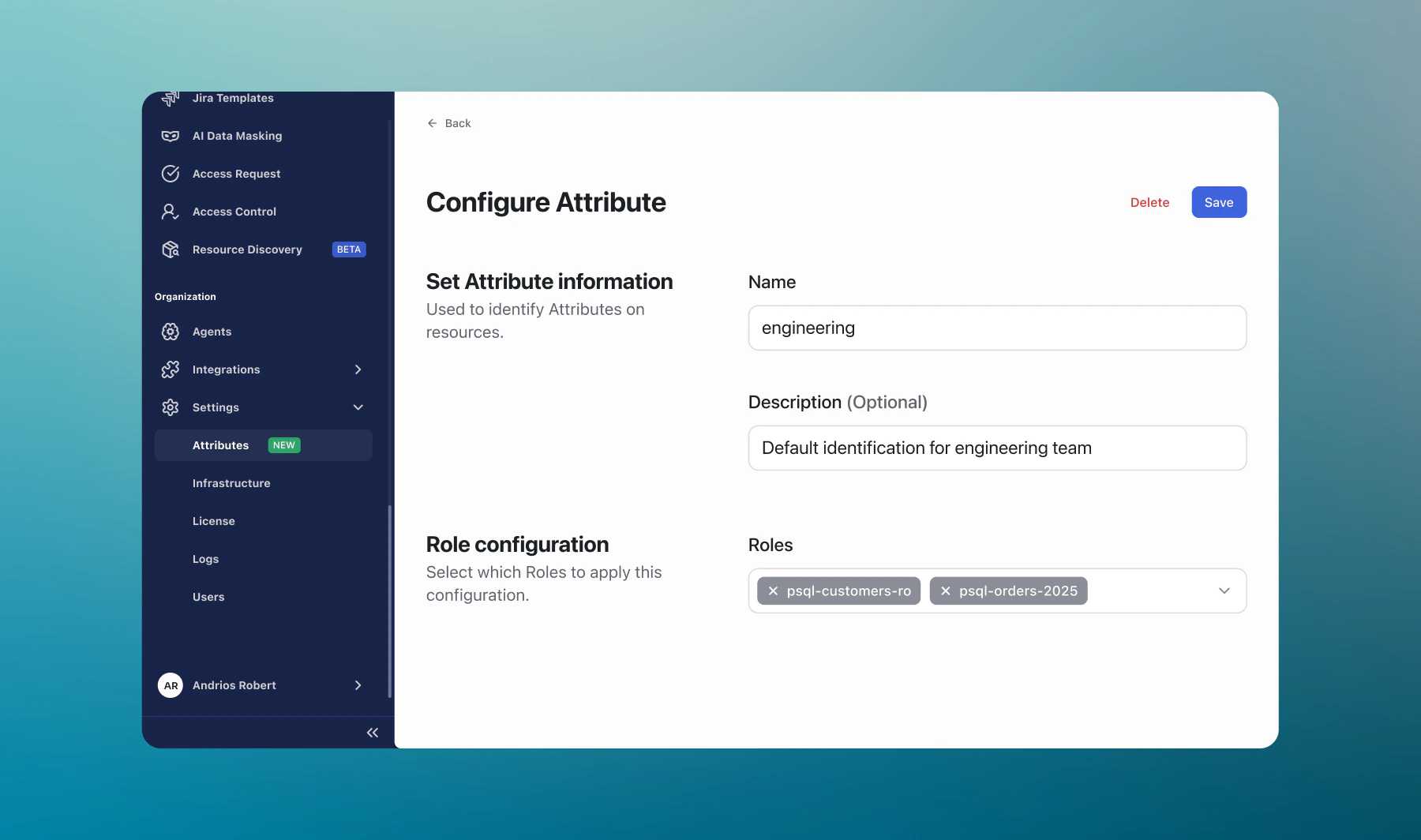
For each attribute, define what it represents and which resource roles it applies to.
Scope policies by attribute
When you configure a supported policy, choose attribute-based scope so one rule can match every resource role that carries that attribute.
Where You’ll See Attributes
| Area | What you can do |
|---|---|
| Settings > Attributes | Create, edit, and review attributes and which resource roles they apply to |
| Resource roles | Set attributes in the Details section of a resource role |
| Feature configuration | Where a feature supports it, scope rules using attributes (for example, Guardrails, Live Data Masking, Access Control, Access Requests) |
Quick Start
Step 1: Open Attributes
- In the sidebar, go to Settings > Attributes
Step 2: Create an attribute
- Click Create a new Attribute
- Define a Name (and any other required fields on the form)
- Choose which resource roles this attribute applies to—this is the set of roles that will match when you scope rules by this attribute
- Save your changes
Step 3: Scope a policy by attribute
When you create or edit a rule in a supported feature, you can attach it to an attribute instead of selecting many resource roles individually.- Open the feature you need (for example, Guardrails, Live Data Masking, Access Control, or Access Requests)
- Create a new rule or policy, or edit an existing one
- Fill in the rest of the form the way you usually would (patterns, actions, approvals, and so on—whatever that screen asks for)
- In the scope or assignment section, choose attribute-based scope (or the equivalent label) and pick the attribute you created
- Save your changes
Step 4: Verify
- Run a query or command from a resource role that should match the rule
- Run one from a resource role that should not match
- Confirm the outcome (for example, blocked vs allowed) matches what you expect
Best Practices
Name attributes for policy intent
Prefer stable, meaningful names (for example,
prod-data-store) so rules stay understandable as teams change.Keep assignments current
When resource roles change, update attribute assignments so policies still match the right scope.
Start with a small scope
Pilot attribute-based rules on a narrow attribute, then expand once outcomes look right in sessions and audits.
Pair with per-resource-role rules when useful
Use attribute-based scope for broad patterns and explicit resource role picks for exceptions—both can coexist.
Troubleshooting
I don’t see attribute-based options in a feature
Check:- Your role can manage that feature
- The feature version you use includes attribute-based scope (options appear in the rule or policy screen when available)
- Attributes exist and are assigned to the resource roles you expect
A policy didn’t apply to a resource role
Check:- The resource role has the attribute you used in the rule
- No conflicting rule with a narrower resource role selection is overriding your expectation
- Filters on the Resources or Resource Roles lists show the attribute you think you set
Next Steps
Access Control
Restrict who can use which connections
Guardrails
Block dangerous queries with pattern-based rules
Live Data Masking
Redact sensitive data in query results
Access Requests
Require approvals for sensitive access